

Set up HARD for iPhone
HARD for iPhone needs three things on: alerts, the scam text filter and call blocking. Where the app shows them, and how to turn each one on.
HARD for iPhone has Is this legit?, HARD codes, Scan a product, call blocking and a scam text filter. It needs iOS 17 or later. Install it from the link in your early access email. The first time you open it, setup walks you through each step. To see it again, go to Settings → Run setup again.
What HARD needs
HARD needs three things turned on to stop scams on your iPhone:
- Alerts
- So HARD can warn you, and your family can reach you.
- Scam text filter
- Scam texts from numbers you don’t know go to Junk.
- Call blocking
- Known scam numbers can’t ring you.
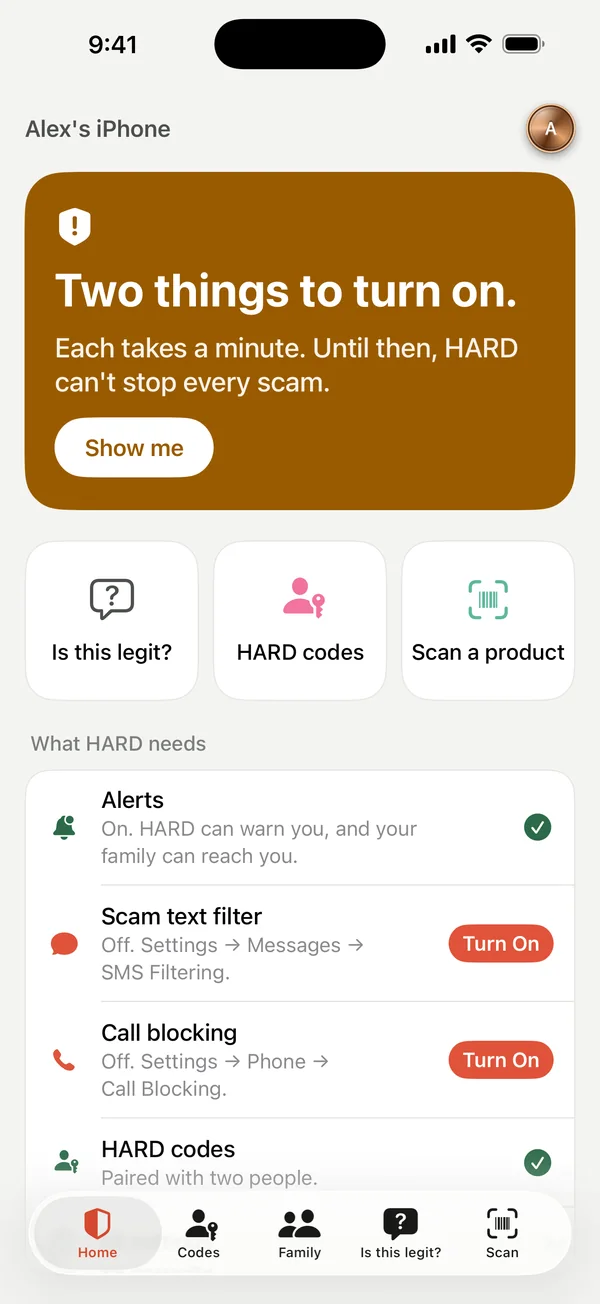
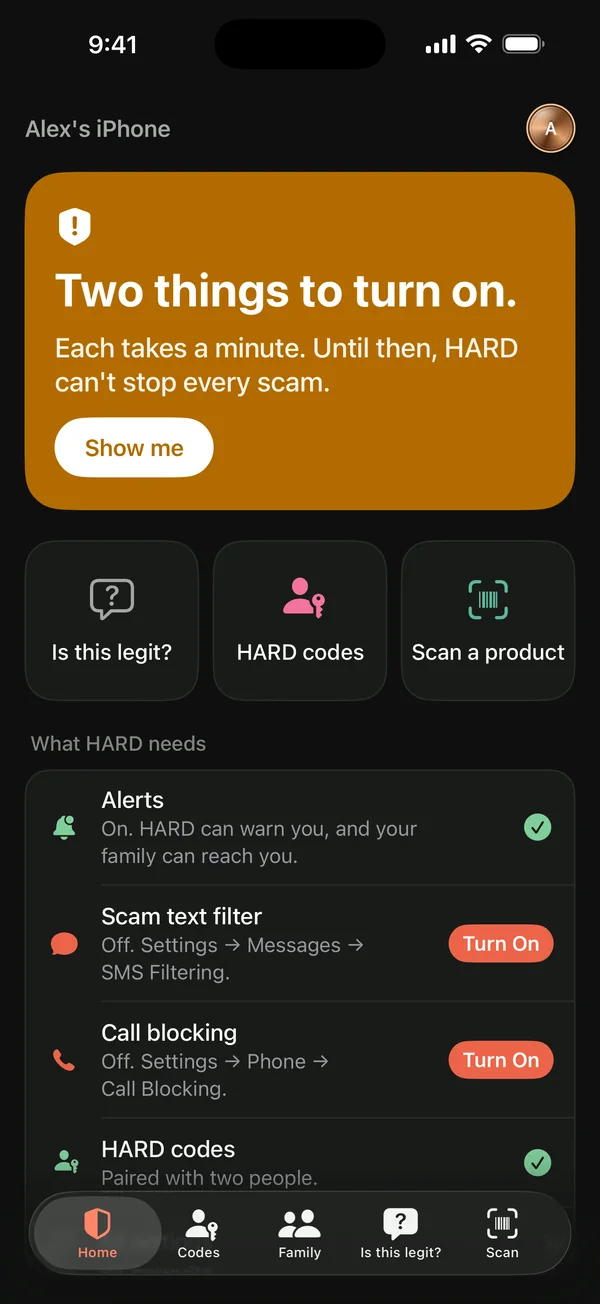
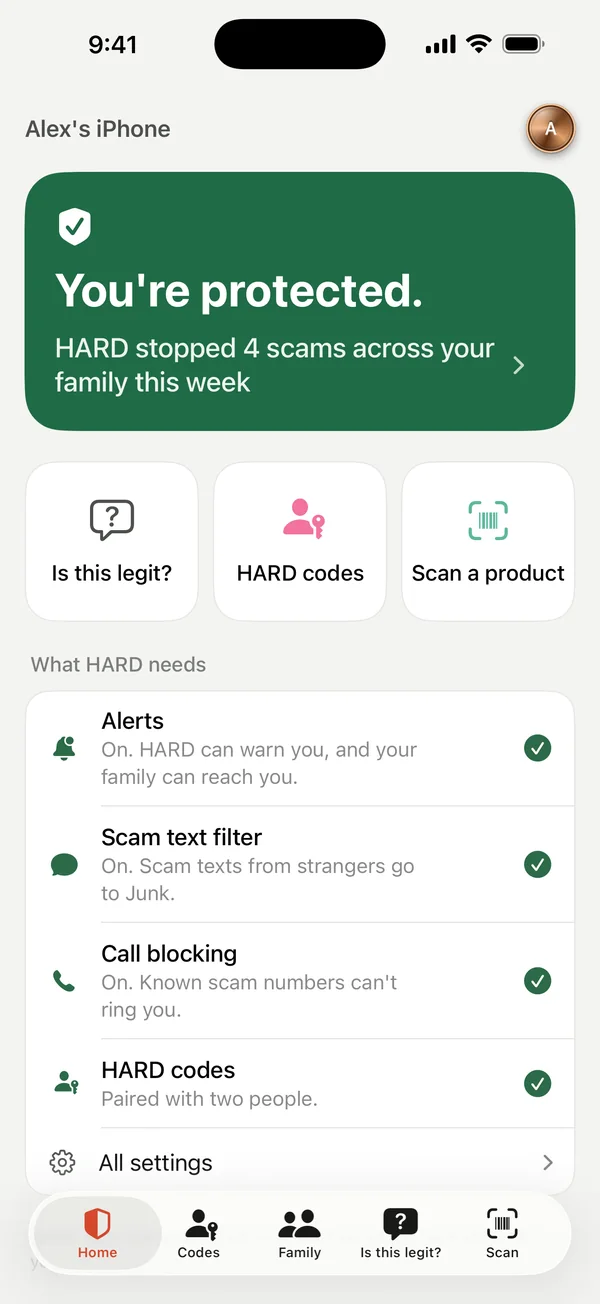
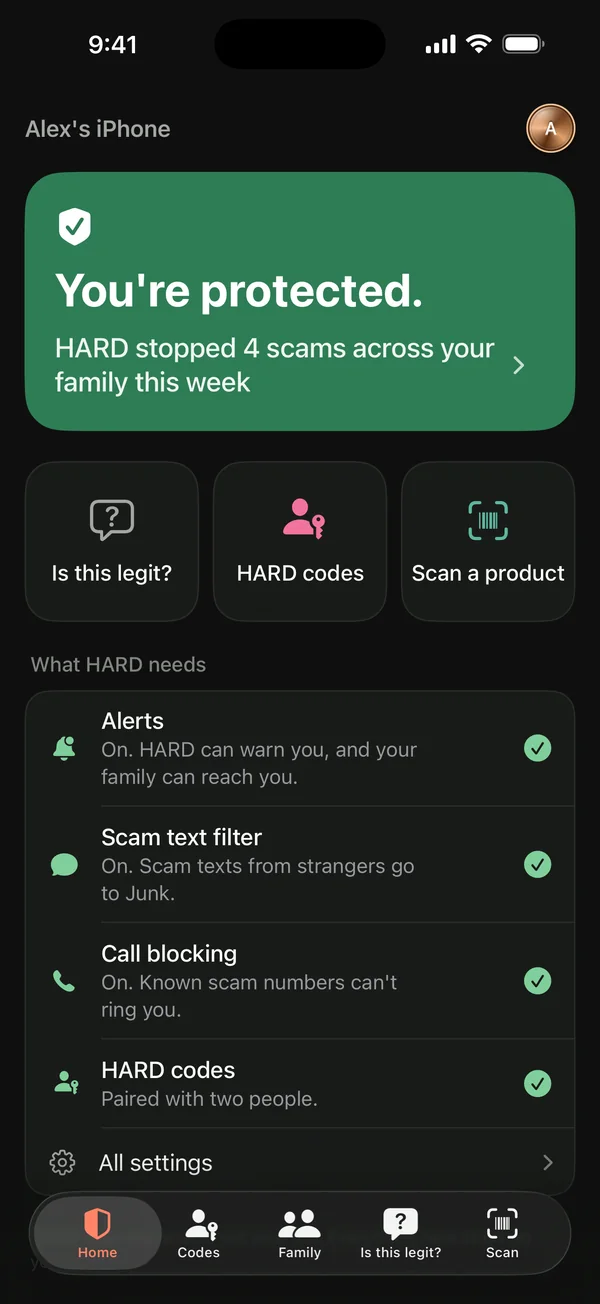
Home lists them under What HARD needs, each with its own Turn On button. Each takes about a minute.
Settings
Your coin, at the top right of Home, opens Settings. While anything is still off, its first row is Finish setting up HARD, with a red count. Under On this iPhone, each of the three shows On or Off.
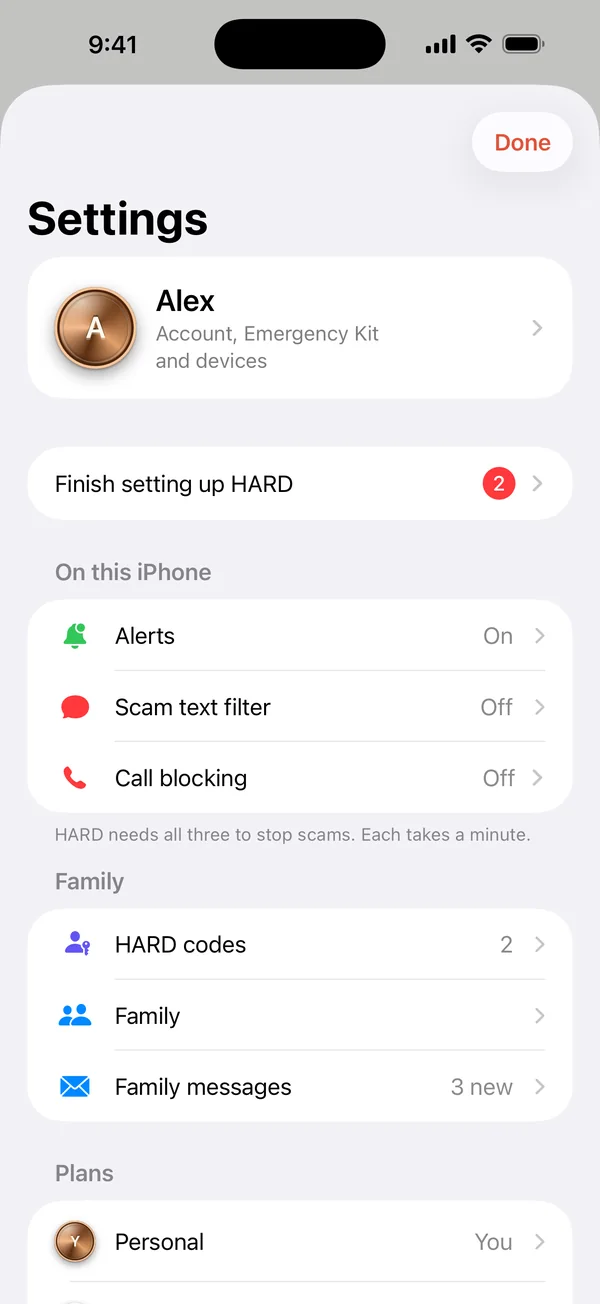
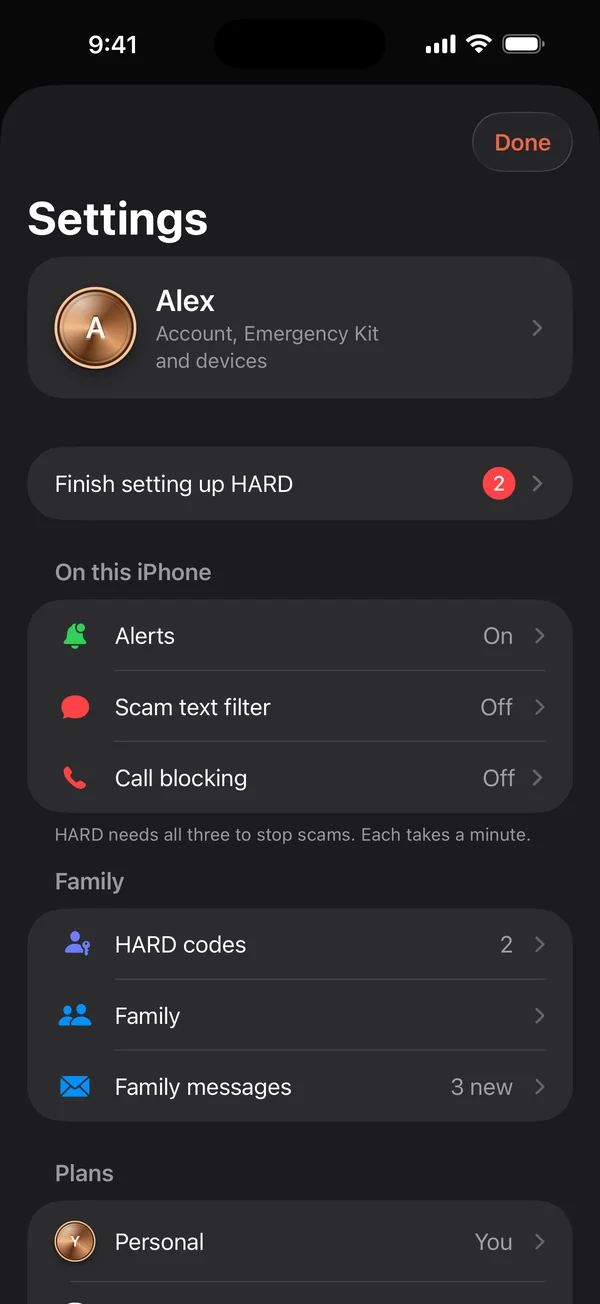
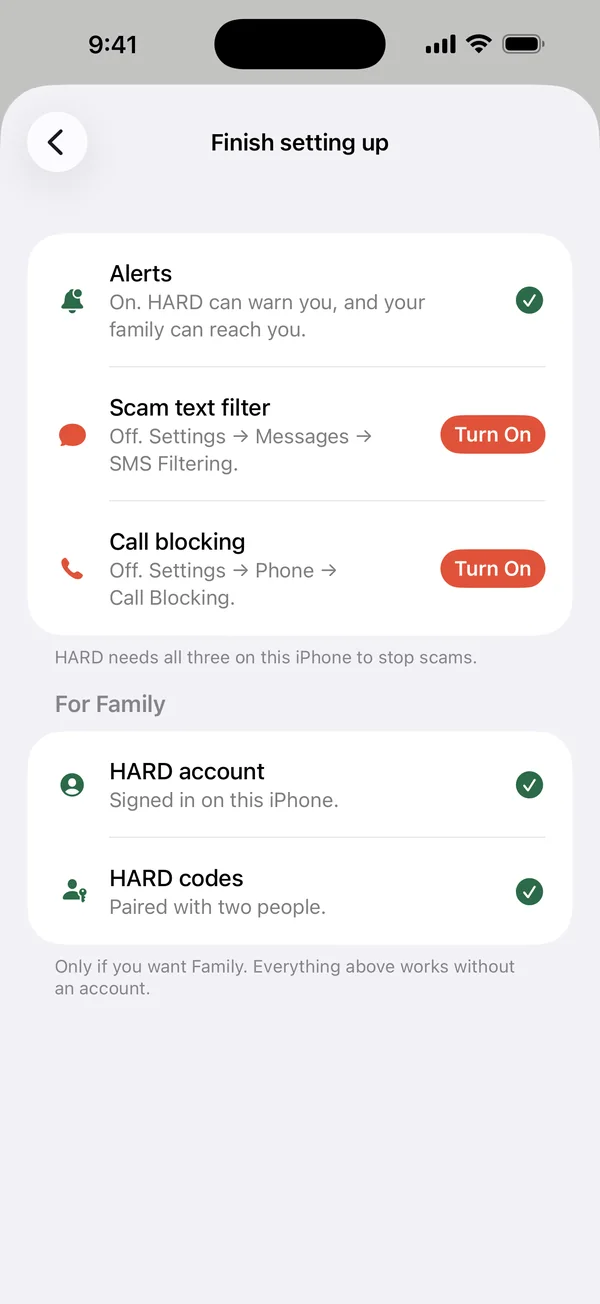
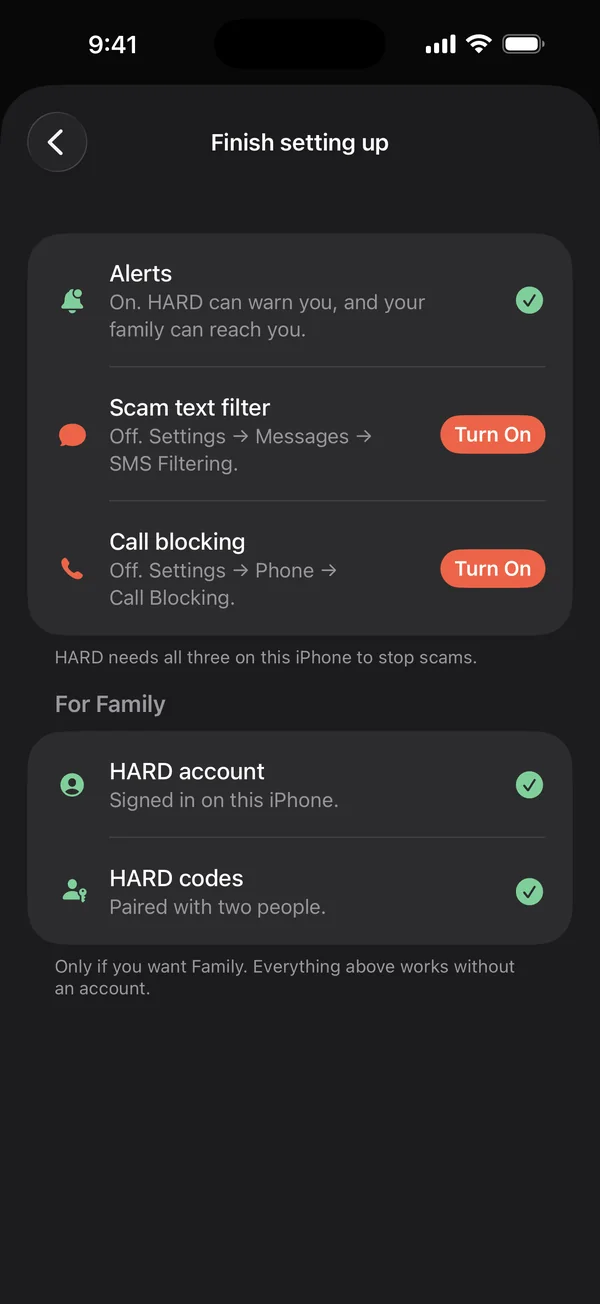
Everything here works without a HARD account. You only need an account for Family, HARD for Mac and asking a person.
In progress Personal and Family plans in the app.
Questions
How do I know HARD is set up on my iPhone?
Tap your coin at the top right of Home to open Settings. Under On this iPhone, Alerts, Scam text filter and Call blocking should each say On. While any is off, Finish setting up HARD is at the top with a red count, and each item has a Turn On button.
Still stuck? Write to support, and tell us what you’ve tried.