

Turn on the firewall
How to approve HARD’s network filter in macOS, what it always blocks, and how the Watch, Ask me and Lock down modes differ.
HARD’s firewall sees every new connection from every app, by name, before any data goes out. It’s a network filter, the same kind Little Snitch and LuLu use, so macOS asks you to allow it once.
- In HARD, open Firewall and DNS and choose Turn on the firewall.
- macOS asks you to approve HARD’s system extension in System Settings. HARD shows Waiting for you in System Settings and an Open System Settings button.
- Go to General → Login Items & Extensions, find Network Extensions, and allow HARD. You may need your Mac’s password.
- macOS asks whether HARD may filter network content. Choose Allow.
- Back in HARD, the firewall shows On.
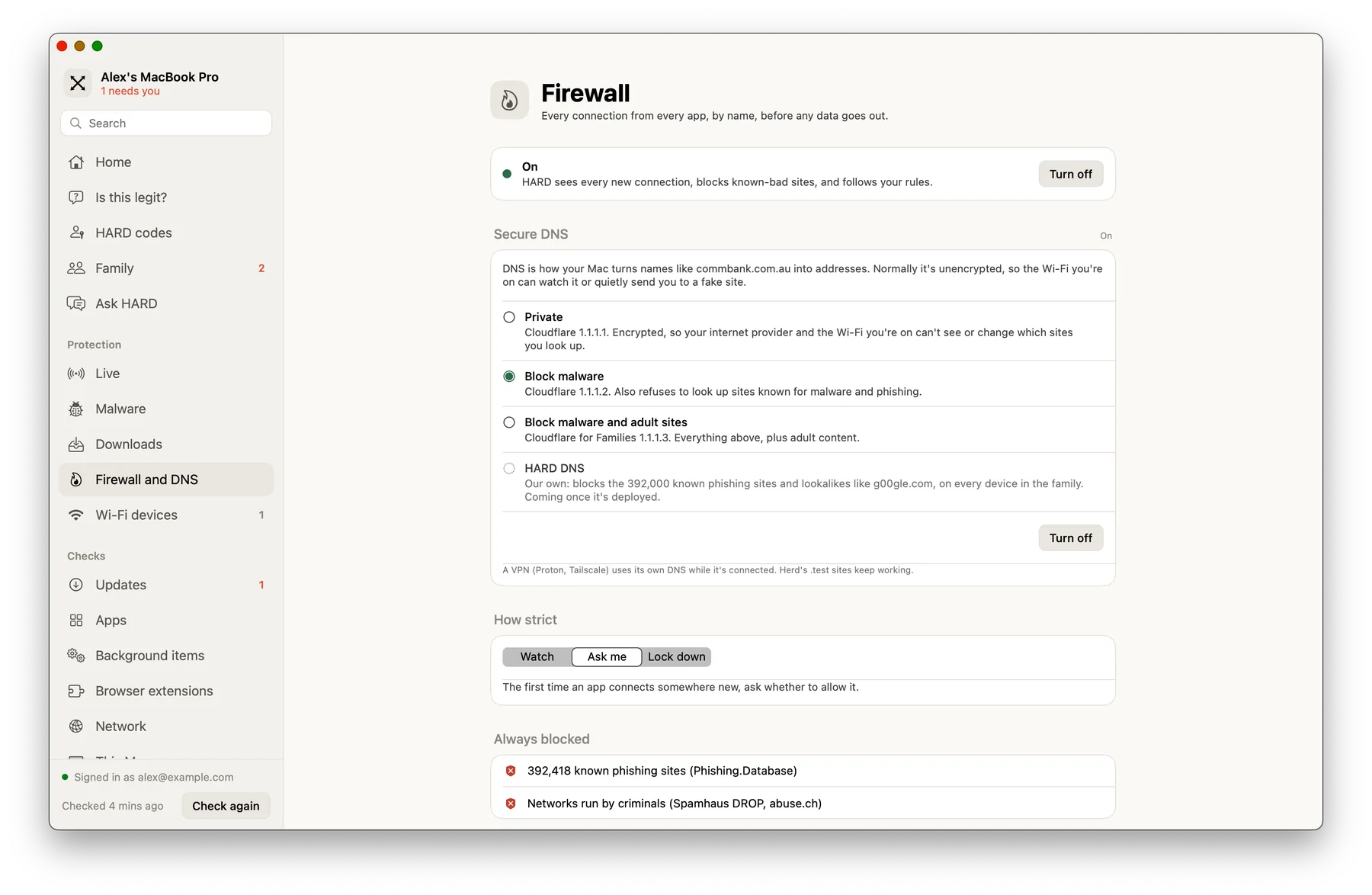
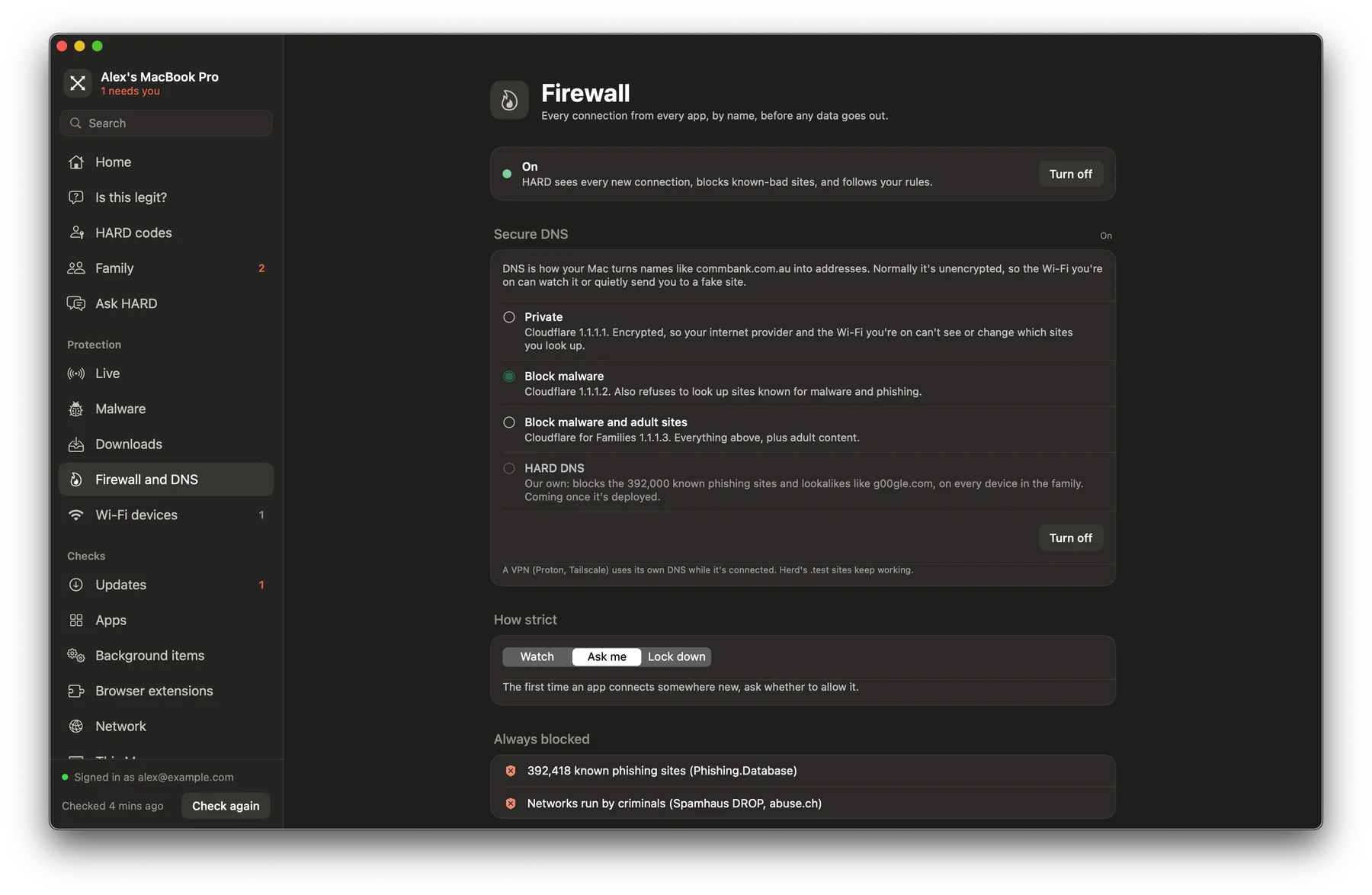
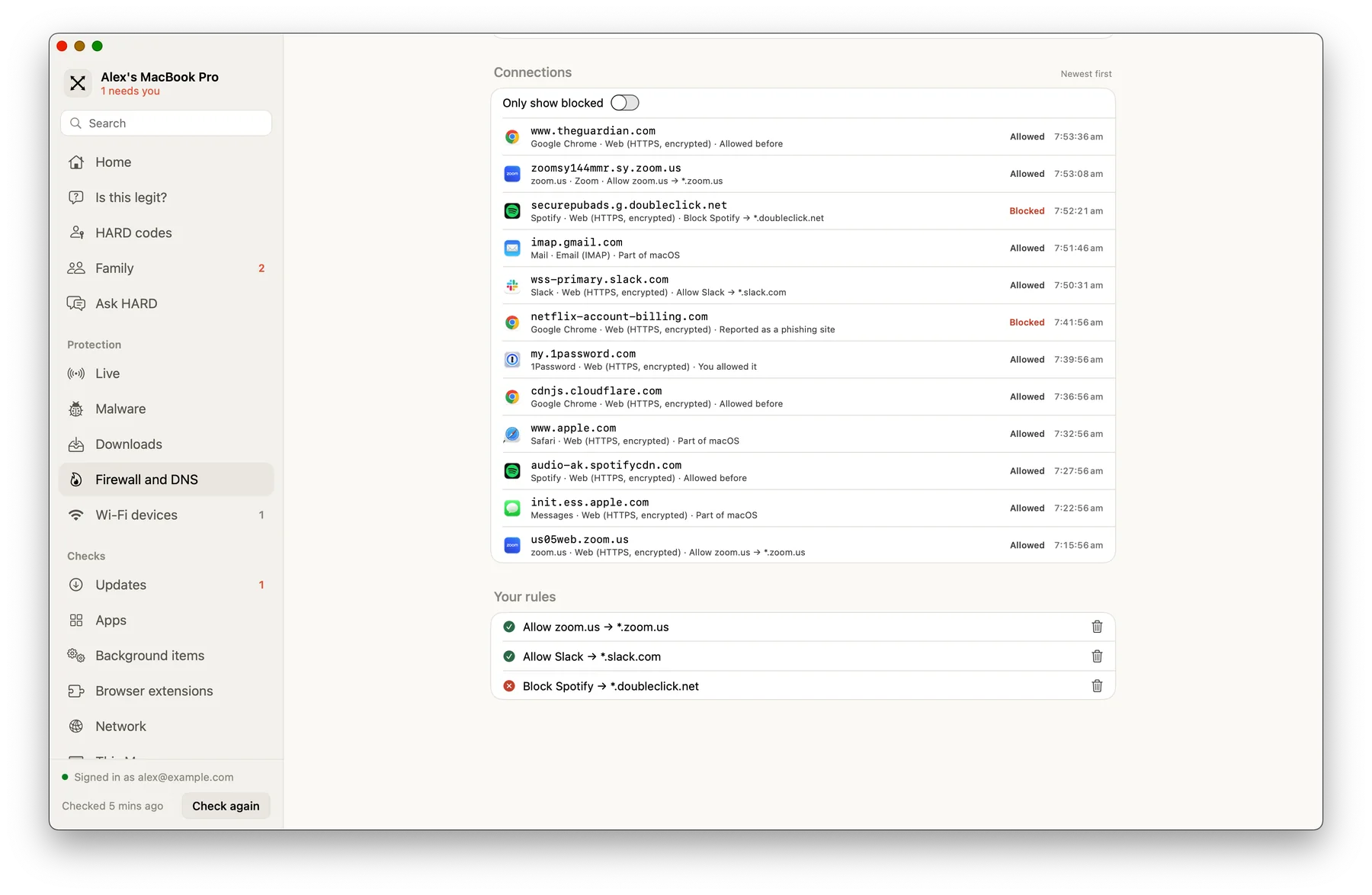
Whatever mode you choose, HARD always blocks more than 392,000 known phishing sites (from Phishing.Database, refreshed every 12 hours) and networks run by criminals (Spamhaus DROP and abuse.ch). The Connections list shows the newest first; turn on Only show blocked to see what was stopped and why. To pause the firewall, choose Turn off.
Watch, Ask me, Lock down
Choose how strict the firewall is under How strict:
- Watch
- The default. Allows everything except known-bad sites, and keeps a record of every connection. No questions.
- Ask me
- The first time an app connects somewhere new, HARD asks. Allow or block it just this once, always for that address, always for anything on that domain, or always anywhere. If you don’t answer within 60 seconds, the connection is allowed.
- Lock down
- Blocks every new connection unless you’ve allowed it. Apple’s own services keep working.
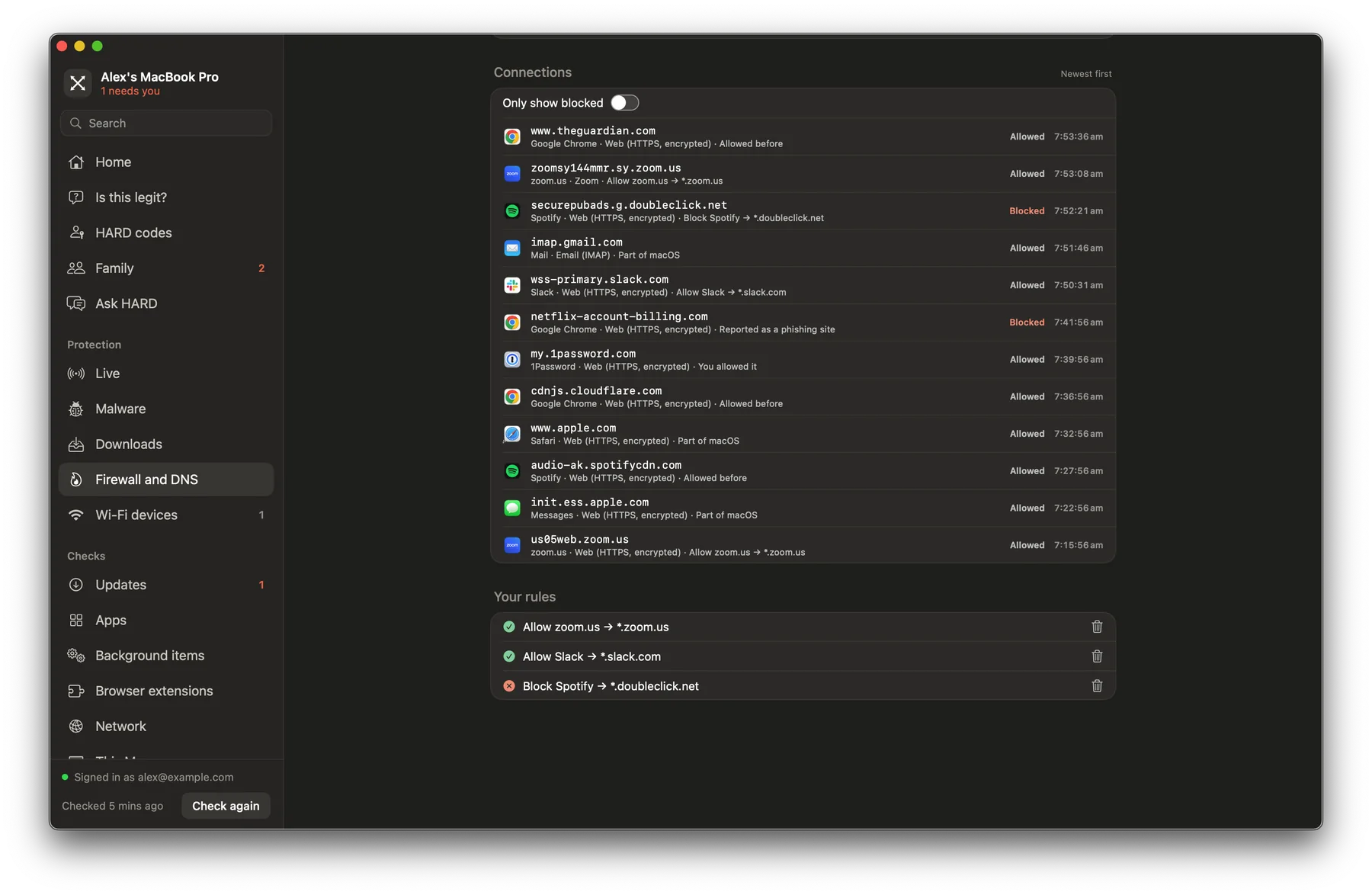
Your answers become rules, listed under Your rules. Delete one with the bin button beside it.
Questions
What’s the difference between Watch, Ask me and Lock down?
Watch, the default, allows everything except known-bad sites, and keeps a record of every connection. Ask me asks the first time an app connects somewhere new; if you don’t answer within 60 seconds, the connection is allowed. Lock down blocks every new connection unless you’ve allowed it. Apple’s own services keep working.
The firewall says it’s waiting for me in System Settings.
macOS asks you to allow a network filter once. Open System Settings → General → Login Items & Extensions, find Network Extensions, and allow HARD. Then macOS asks whether HARD may filter network content: choose Allow.
An app I use was blocked.
Open Firewall and DNS in HARD. Under Connections, turn on Only show blocked to see what was stopped and why. Rules you’ve made are listed under Your rules, where you can delete one. In Lock down, anything you haven’t allowed is blocked.
Still stuck? Write to support, and tell us what you’ve tried.