

Wi-Fi checks and Local Network
HARD scans your home network for open doors and checks your router against published flaws. How to allow the Local Network permission.
Wi-Fi devices scans your home network from the Mac: it names each device (router, TV, printer, cameras, phones), looks for open doors such as Telnet, Remote Desktop or open camera streams, and checks the router’s model and firmware against published flaws. It looks again when you rejoin a network, and notices new devices.
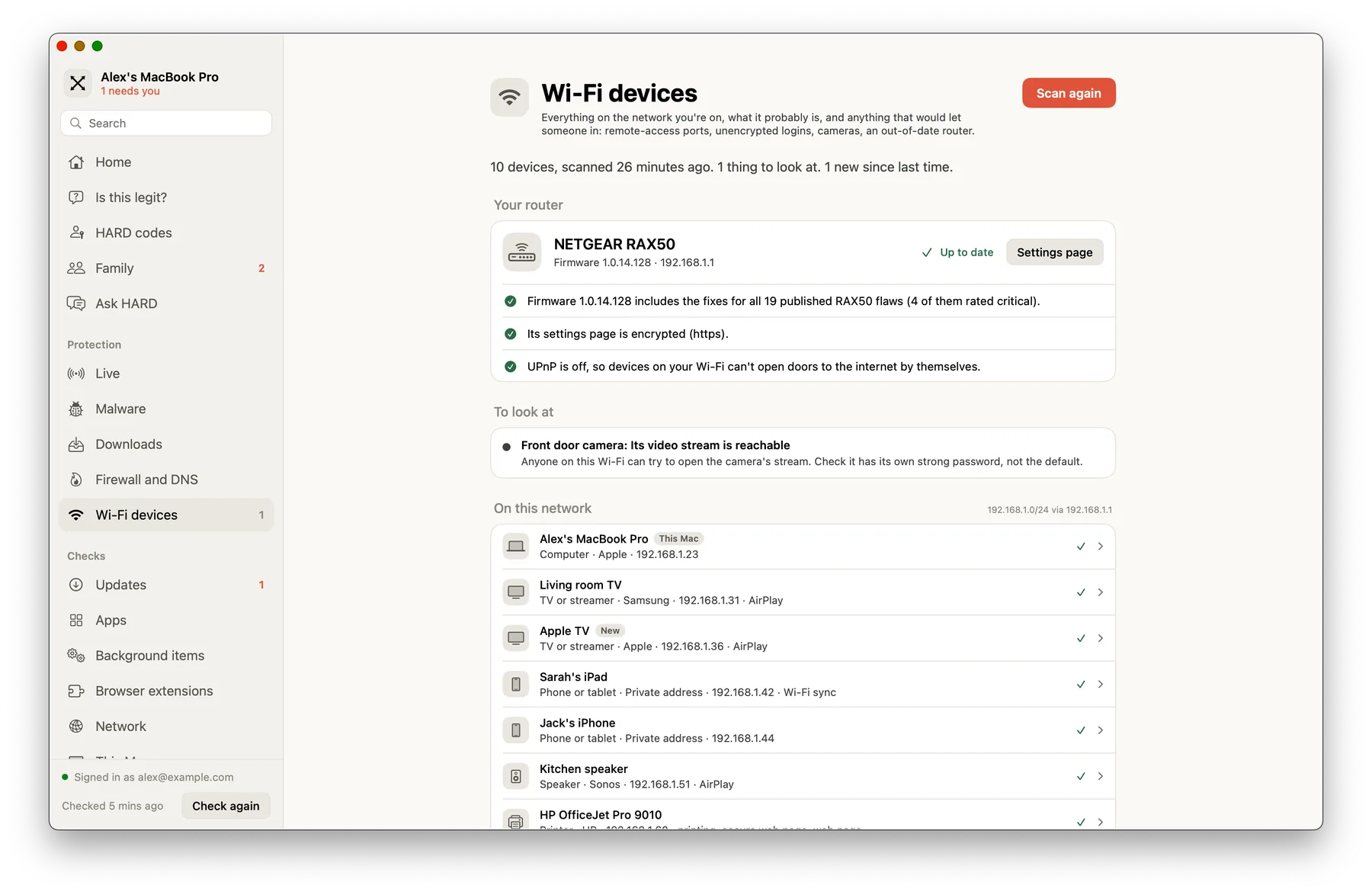
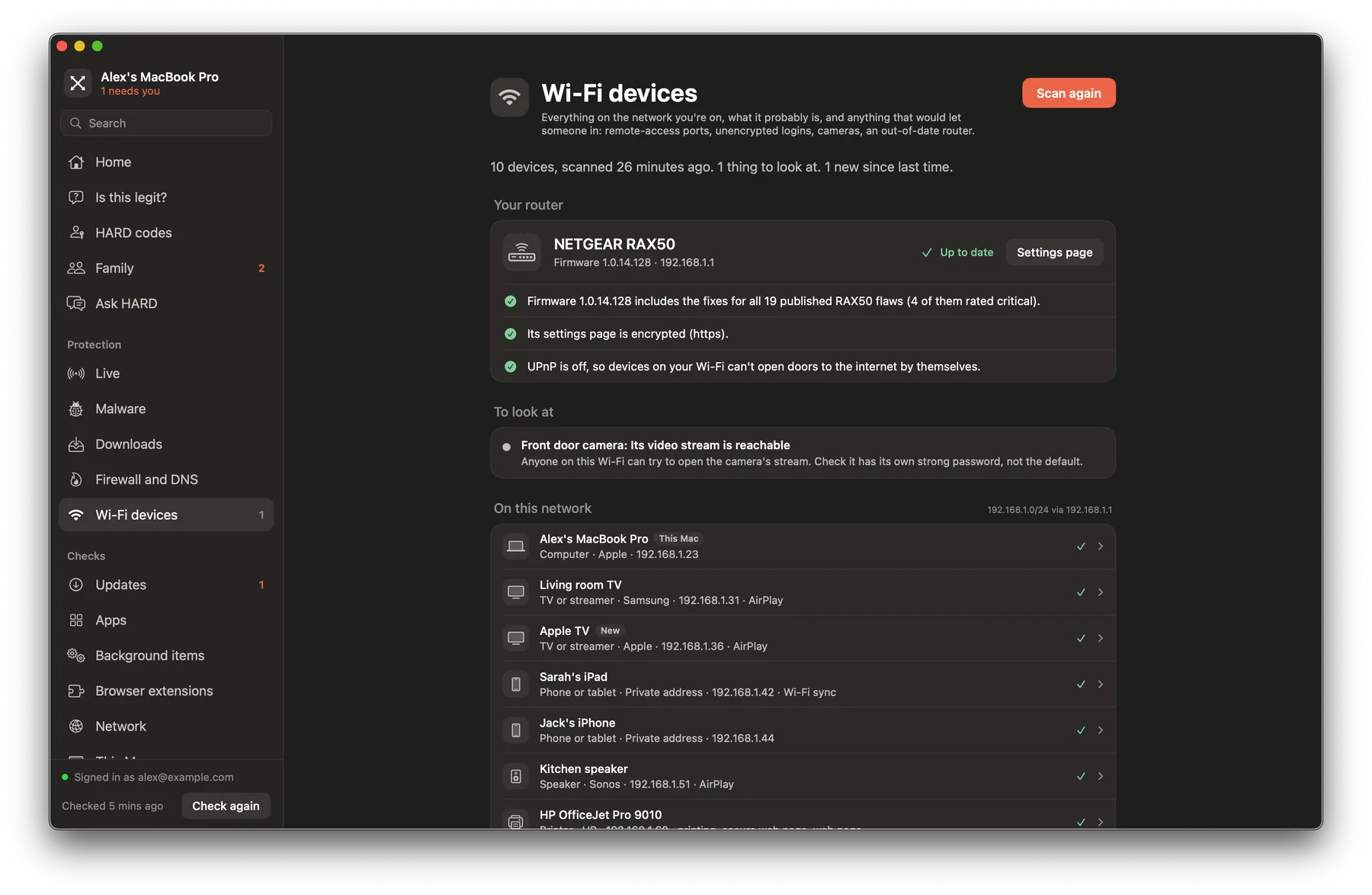
The Local Network permission
The first scan asks for the Local Network permission. Choose Allow. If you said no, names still work but open ports and the router check don’t:
- Open System Settings → Privacy & Security → Local Network.
- Turn on HARD.
- In HARD, scan again.
To check the router, HARD sends its model name to the US government’s National Vulnerability Database (NVD). Nothing else about your network leaves the Mac.
Questions
The Wi-Fi scan only shows names, not open ports or the router check.
macOS is limiting what HARD can reach on your network. Turn on HARD in System Settings → Privacy & Security → Local Network, then scan again.
Still stuck? Write to support, and tell us what you’ve tried.