

Secure DNS
Secure DNS encrypts your Mac’s lookups with Cloudflare 1.1.1.1, so the Wi-Fi you’re on can’t watch them or send you to a fake site.
DNS is how your Mac turns names like commbank.com.au into addresses. Normally it isn’t encrypted, so the Wi-Fi you’re on can watch it, or quietly send you to a fake site. Secure DNS encrypts it for the whole Mac, using Cloudflare. Pick one in Firewall and DNS:
| Option | Cloudflare | What it does |
|---|---|---|
| Private | 1.1.1.1 | Encrypted, so your internet provider and the Wi-Fi you’re on can’t see or change which sites you look up. |
| Block malware | 1.1.1.2 | Also refuses to look up sites known for malware and phishing. |
| Block malware and adult sites | 1.1.1.3 | Cloudflare for Families: everything above, plus adult content. |
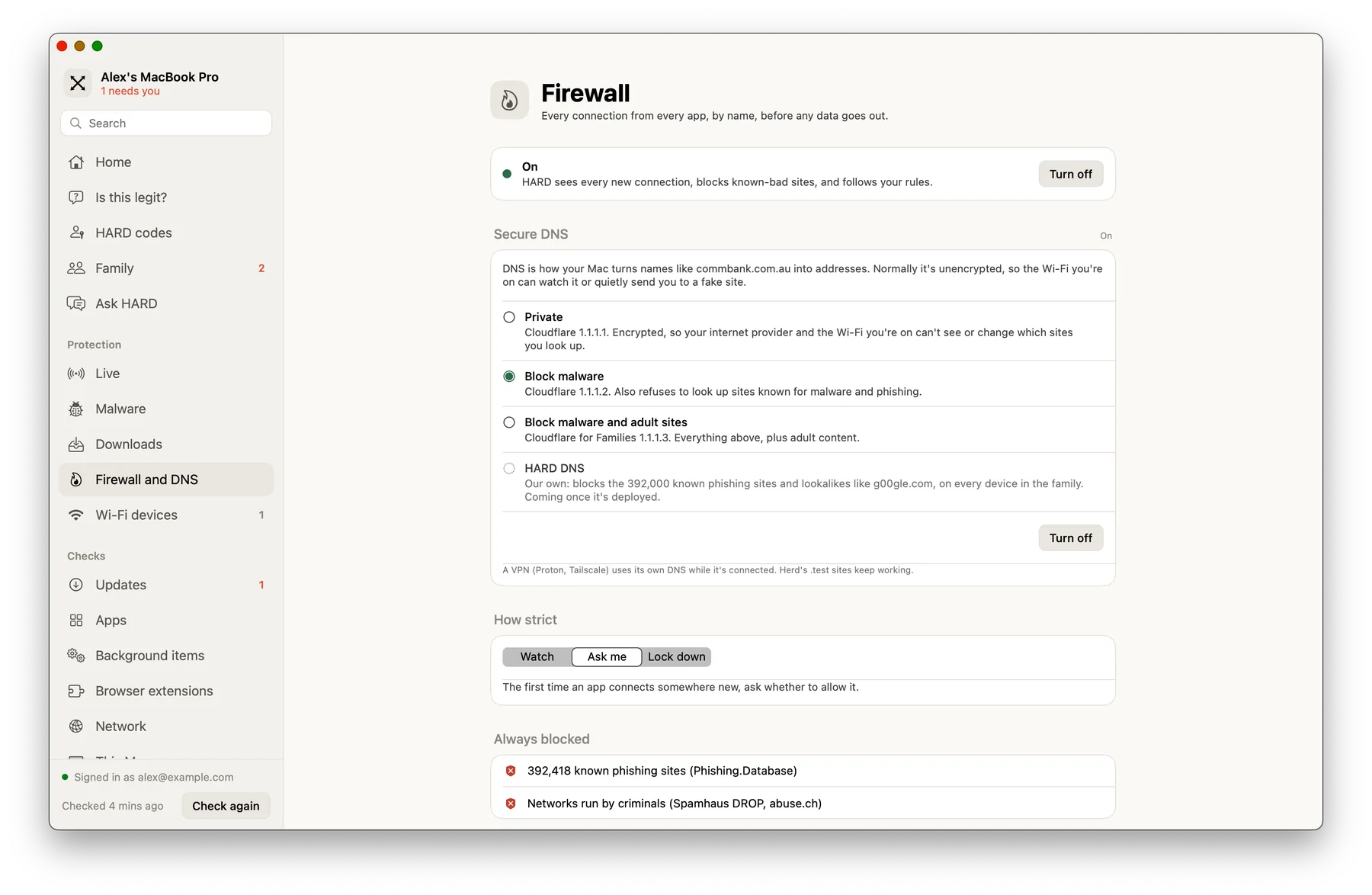
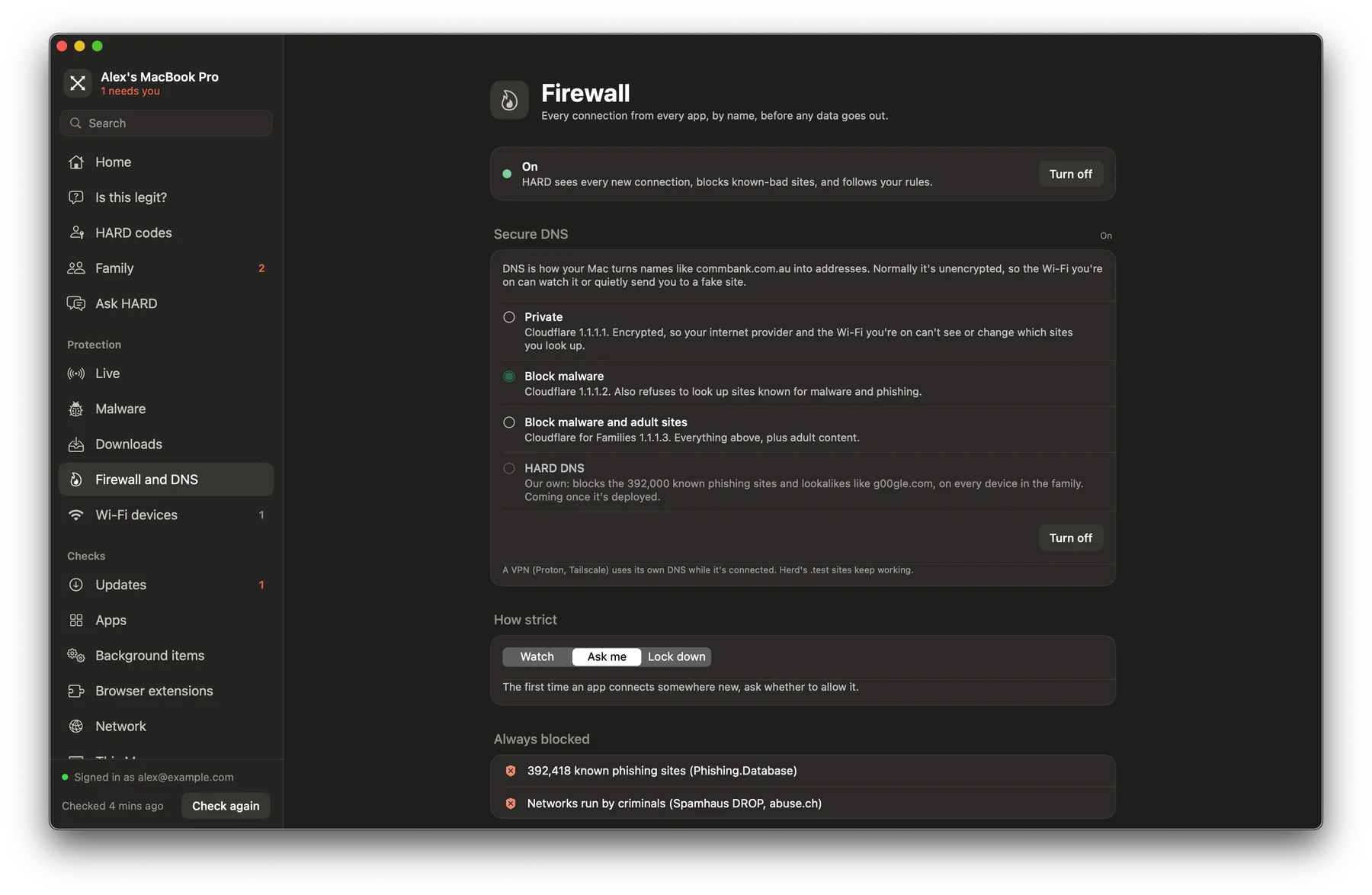
- Choose an option. HARD saves it as a DNS setting called HARD.
- If HARD says One more step, choose Open Network settings, go to System Settings → Network → Filters, and switch HARD on.
To stop, choose Turn off. A VPN uses its own DNS while it’s connected. With Secure DNS on, your lookups go to Cloudflare; see the privacy policy.
Coming HARD DNS, our own filter, will block the same 392,000 phishing sites and lookalikes like g00gle.com on every device in the family, iPhones included.
Questions
Secure DNS is on, but HARD says “one more step”.
Open System Settings → Network → Filters and switch HARD on. HARD has a button that opens the right page. If you use a VPN, it uses its own DNS while it’s connected.
Still stuck? Write to support, and tell us what you’ve tried.