

Turn on the scam text filter
How to turn on HARD’s scam text filter on iPhone, step by step. Scam texts from numbers you don’t know go to Junk, checked on the phone.
- In HARD, tap Settings → Scam text filter, then Open Settings.
- In the iPhone’s Settings, go to Apps → Messages → Unknown and Spam → SMS Filtering (on iOS 17, Messages is at the top level), then choose HARD.
- Come back to HARD and tap It’s on. iOS doesn’t let apps check this setting, so HARD takes your word for it.
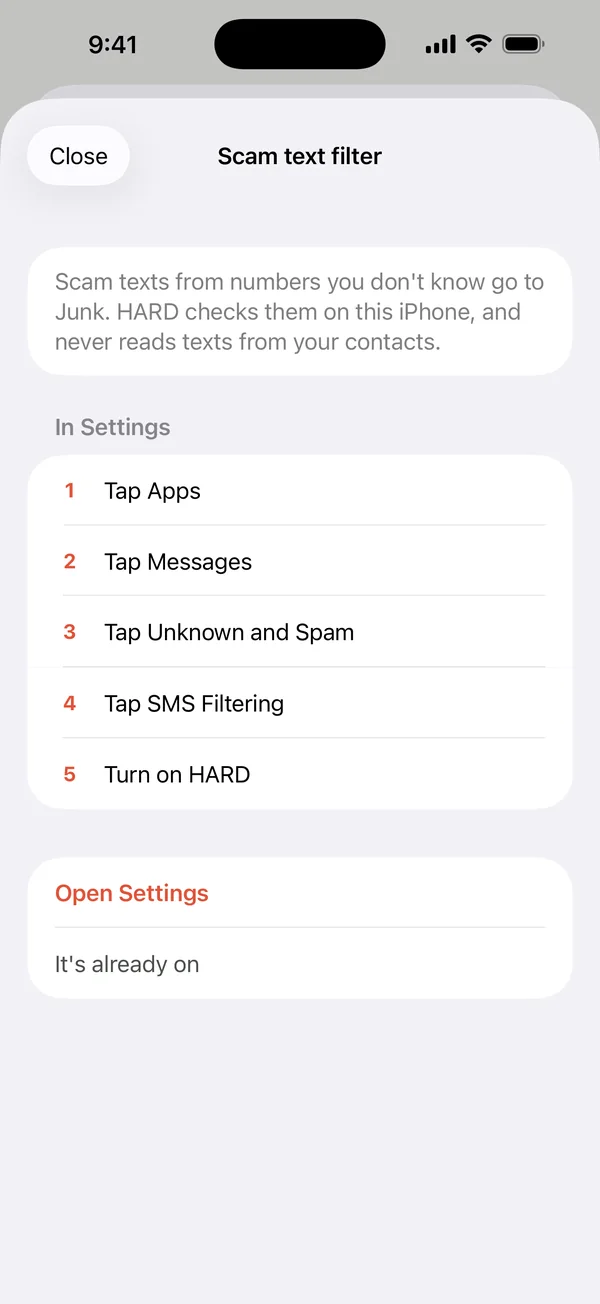
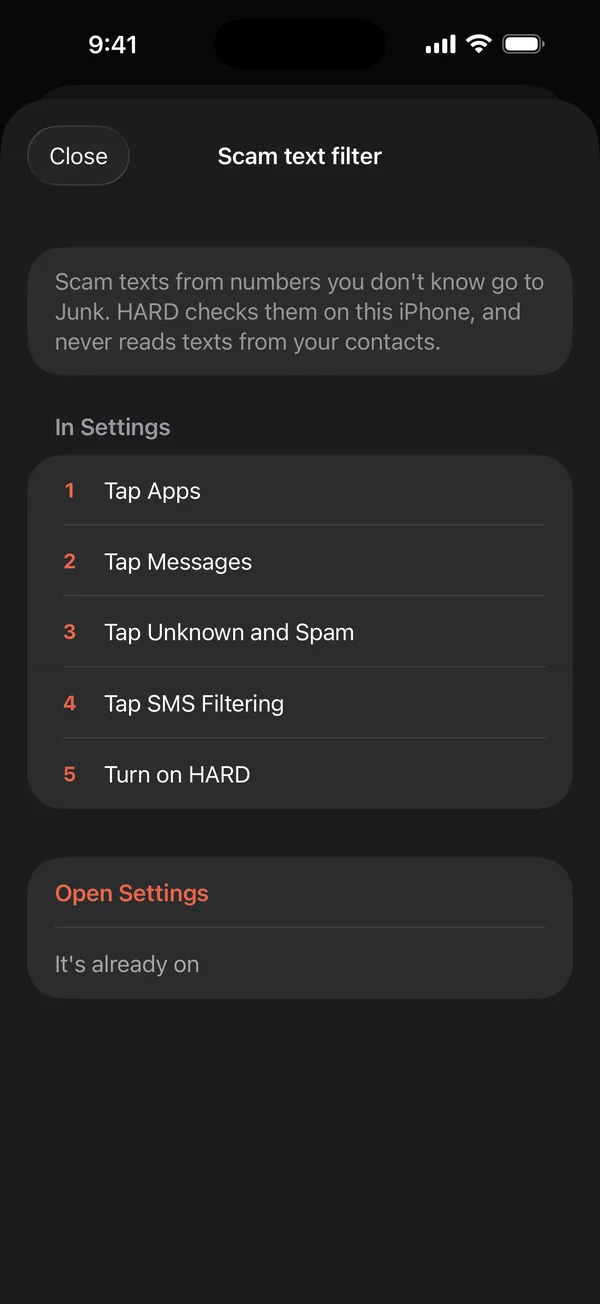
What it checks
Only texts from numbers that aren’t in your contacts are checked, on the phone. Scams go to Junk, and everything else is left alone. Nothing leaves your phone.
Questions
How do I turn on the scam text filter?
In the iPhone’s Settings, go to Apps → Messages → Unknown and Spam → SMS Filtering and choose HARD. Then tap It’s on in HARD. Scam texts from numbers you don’t know go to Junk.
Does the text filter read all my messages?
No. iOS only passes HARD texts from numbers that aren’t in your contacts, and HARD checks them on the phone. Nothing leaves it, and your contacts’ messages are never checked.
Still stuck? Write to support, and tell us what you’ve tried.